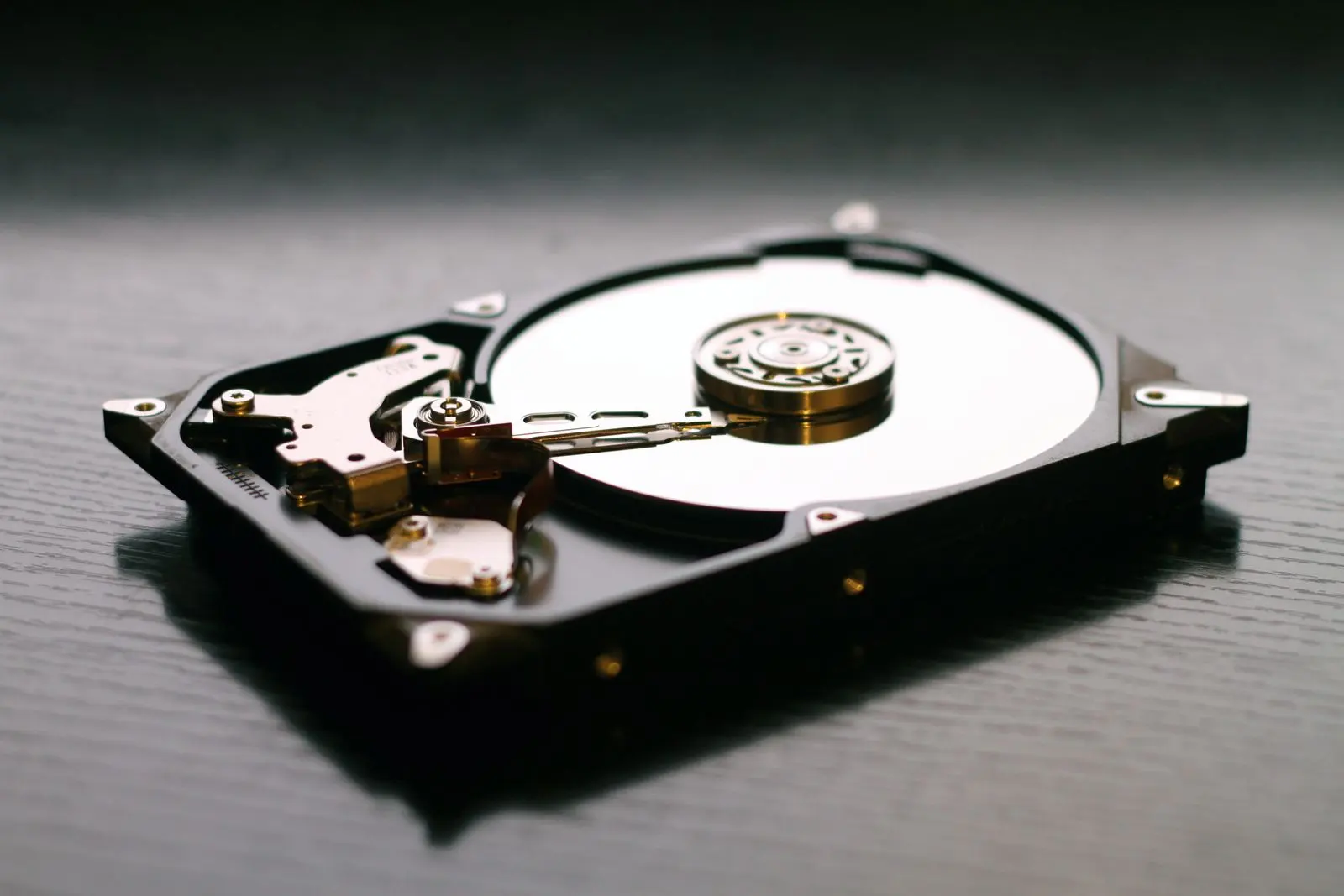
When Windows deletes a file, it usually doesn’t destroy it: it just marks the space it used as free. Until new data is written over it, there is a good chance of getting it back. That is why speed matters, and so does the order in which you look.
File recovery: where to look for what disappeared.
1 Stop writing to the disk
This is the most important step. Every new file, every download, every program you install can land on the very space the deleted file used and overwrite it for good. Until you have recovered what you need, use the PC as little as possible and don’t install anything on the disk the file disappeared from.
If the file was on a USB stick or a memory card, remove it and put it aside: no new photos, no copies.
2 Look in the Recycle Bin
It sounds obvious, but that is where almost everything ends up. Open the Recycle Bin from the desktop, find the file (you can sort by date deleted), right-click it and choose Restore: it goes back to the folder it came from.
If you have only just deleted it in File Explorer, also try Ctrl+Z: it undoes the last deletion. Be aware, though: files deleted with Shift+Delete, files too large for the Recycle Bin and files removed from USB sticks or network folders usually skip the Recycle Bin.
3 Try Previous versions
Windows can keep older copies of files and folders. Right-click the folder that held the file, then Properties → Previous versions. If a list with dates appears, open the version from before the deletion and copy the file out.
The list is empty if File History, restore points or snapshots are not active on the PC. With the system image turned on, TurboFix creates exactly the snapshots Windows uses for this tab: it is the easiest way to get yesterday’s file back. The details are on the automatic backup page.
4 Restore from File History or your backup
If you had turned on File History, search for it in the Start menu and choose the option to restore your personal files. You browse by date, select the file and press the restore button.
If you use the TurboFix backup instead, the files are ordinary copies on an external drive or NAS: open the folder and take what you need. Before overwriting or deleting a file in the backup, TurboFix sets the previous copy aside in a dated folder. If you don’t have a backup yet, now is the time to set one up: the guide to backing up a Windows PC explains how. Remember that a restore point protects Windows and your programs, but it does not replace a backup of your documents.
5 Check the OneDrive recycle bin
If the folder was synced with OneDrive, a file deleted on the PC also disappears online, but it lands in the OneDrive recycle bin. Sign in to OneDrive in your browser, open the Recycle bin in the left-hand menu and restore the file. It only stays there for a limited time, so don’t wait.
6 Microsoft’s free recovery tool
If the file is not in any copy, there is still Windows File Recovery, Microsoft’s free tool, installed from the Microsoft Store. It works from the command line: you specify the disk to search and a different disk to save what it finds. Saving to the same disk risks overwriting the very files you are trying to recover.
To be honest about it: on SSDs, which most PCs have today, the TRIM feature really clears freed space shortly after deletion. There, recovery rarely works. On hard drives, USB sticks and memory cards the odds are better, especially if you stopped straight away.
7 When you need a professional
If the disk makes strange noises, isn’t recognised, has been dropped or got wet, don’t try recovery programs: every attempt can make the damage worse. Switch the PC off and go to a data recovery lab. It costs money, but it is the only safe route for data that matters. To spot a failing disk in time, read how to check your disk’s health.
Questions
Frequently asked questions.
Can I recover a file after emptying the Recycle Bin?
Sometimes: on a hard drive or a USB stick, if nothing has been written over it, Microsoft’s free tool may find it. On an SSD the odds are low. The safe routes remain Previous versions and a backup.
Does TurboFix recover deleted files?
TurboFix works mainly before trouble strikes: its backup keeps previous versions of your files and, with the system image turned on, it creates the snapshots behind Windows Previous versions. The File recovery screen shows where to look for what disappeared.
Does this work for USB sticks and memory cards?
Yes, but files deleted from them usually skip the Recycle Bin. Stop using them straight away and try Microsoft’s tool, saving the recovered files to a different disk.
Does a restore point bring back my documents?
No. System Restore covers Windows, drivers and programs. For documents you need Previous versions, File History or a backup.
Keep reading.
The other guides, all in plain language and all free.

 IT